
Jobpac Connect offers the ability to change the approver for a subcontract agreement even after submitting one for approval. To change the approver, you can perform the following steps:
- Click the search icon in the Job field to display the Job Search window.

- Select the required job and click the Select button in the Job Search window.

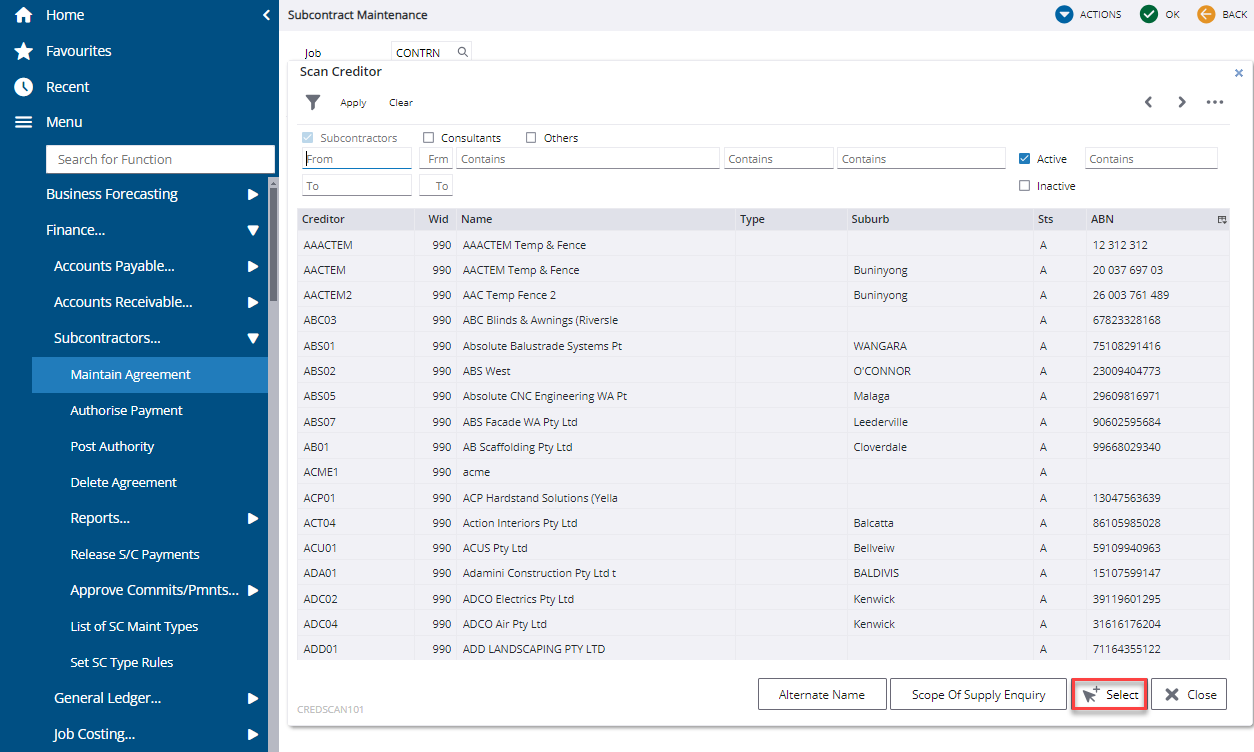
- Click the search icon in the Subcontractor field to display the Creditor Search - By Name window.

- Select the required creditor and click the Select button in the Creditor Search - By Name window.
- Click the search icon in the Agreement field to display the Subcontract Agreement Scan window.

- Select the required agreement and click the Select button in the Subcontract Agreement Scan window.

- Enter the required values and click the OK button at the top of the Subcontract Maintenance screens that appear one after the other until you reach this screen:

- Click the Actions drop-down at the top of the screen and click the Email Approver/s option to display the SC Approval - Send for Approval window.

- Select a different approver and click the Select button and then the Send With Email button in the SC Approval - Send for Approval window.
