
You can upload and publish drawings (.pdf files) directly in the Drawings module. After the drawings are processed and published, they're available in the Recently processed view for 24 hours.
You can upload one or more drawings at a time. A drawing set is a group of drawings that are part of the same upload. You can select the drawing set name or add a new one when you upload the drawings.
- Print a report for the drawing.
- Compare the drawing to another drawing.
- Add comments to the drawing.
- Add annotations or filter the annotations on the drawing.
- Link items to the drawing.
You can add the missing information and edit the fields in the drawing viewer.
Processing uploaded drawings
- Splits multi-page .pdf files into individual drawings.
- Extracts individual .pdf files from .zip files.
- Uses artificial intelligence (AI) to identify the drawing number, title, and revision date (if available) from the title block of each drawing.
- Carries forward annotations from the most recent revision to the new current version.
- Publishes drawings with a drawing number and title, which are required fields.
- Sends a publishing notification to project team members.
- Adds callout annotations.
Upload drawing information
The drawing set name, which is displayed in the Search panel and in the revision selector, is set automatically to a drawing number in the upload.

If a set of uploaded drawings includes two drawings with duplicate drawing numbers, they are assigned different revision numbers. The drawing that is processed first is the older revision, and the other drawing is the current version.
When you upload a drawing in the Drawings module, the discipline for the uploaded drawing is found based on the drawing prefix from the discipline settings and the drawing number. If the discipline isn't identified, the Discipline field is empty for the drawing.
For example, in the discipline settings, the prefix for the Architectural option is A.
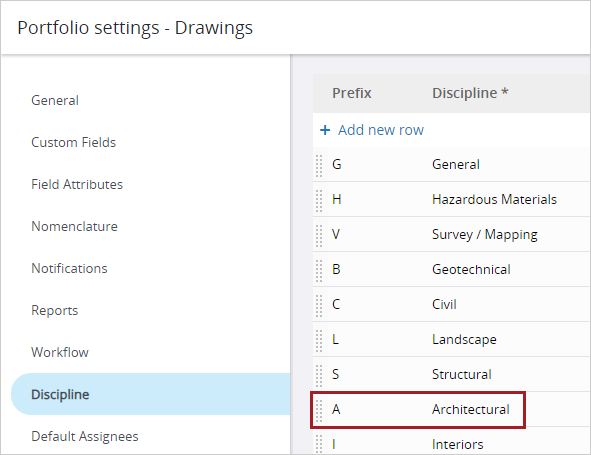
When you upload a drawing with a number that starts with A, the Architectural option is selected automatically in the Discipline field.
