
You can upload and publish drawings (.pdf files) directly in the Drawings module. After the drawings are processed and published, they're available in the Recently processed view for 24 hours.
You can upload one or more drawings at a time. A drawing set is a group of drawings that are part of the same upload. You can select the drawing set name or add a new one when you upload the drawings.
- Print a report for the drawing.
- Compare the drawing to another drawing.
- Add comments to the drawing.
- Add annotations or filter the annotations on the drawing.
- Link items to the drawing.
You can add the missing information and edit the fields in the drawing viewer.
Processing uploaded drawings
- Splits multi-page .pdf files into individual drawings.
- Extracts individual .pdf files from .zip files.
- Uses artificial intelligence (AI) to identify the drawing number, title, and revision date (if available) from the title block of each drawing.
- Carries forward annotations from the most recent revision to the new current version.
- Publishes drawings with a drawing number and title, which are required fields.
- Sends a publishing notification to project team members.
- Adds callout annotations.
Upload drawing information
You can select the drawing set name or add a new one when you upload the drawings.

If a set of uploaded drawings includes two drawings with duplicate drawing numbers, they are assigned different revision numbers. The drawing that is processed first is the older revision, and the other drawing is the current version.
When you upload a drawing in the Drawings module, the discipline for the uploaded drawing is found based on the drawing prefix from the discipline settings and the drawing number. If the discipline isn't identified, the Discipline field is empty for the drawing.
For example, in the discipline settings, the prefix for the Architectural option is A.
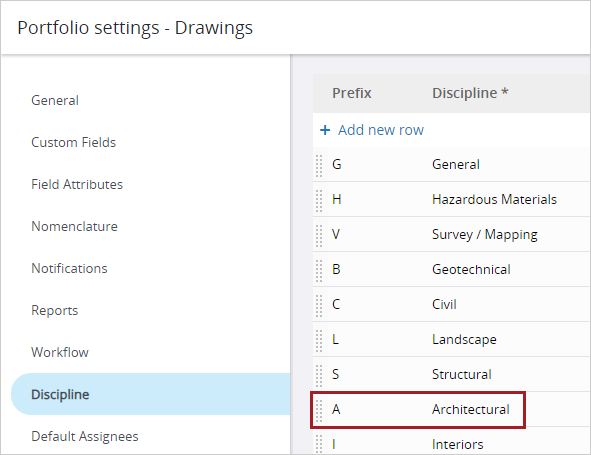
When you upload a drawing with a number that starts with A, the Architectural option is selected automatically in the Discipline field.

Upload a drawing
In the Drawings module, you can upload one or more drawings at a time. A drawing set is a group of drawings that are part of the same upload.
- Choose one:
- Drag one or more drawings to the dialog.
- Select Browse, and then select one or more drawings.
Note:- To remove a file, select
 (Remove).
- To upload more drawings, drag them to the dialog, or select Browse or File Library at the bottom.
- Select Process.During processing, a placeholder tile or row is displayed in the Drawings module for each uploaded drawing. Drawings aren't displayed in the drawing index panel until the processing is finished.Tip: If needed, you can delete the drawing while it's still in the processing state.

Edit a published drawing
If you have permission to edit published drawings, you can edit drawing details and add missing required information for published drawings in the Drawings module.

- Drawings with the same drawing number must have different revision numbers.
- The drawing with the latest revision date in the drawing series is set automatically to Current, and the status for the other revisions is set to Not Current.
- Changed the drawing number.
- Added the missing revision number for a duplicate drawing.
- Annotations and hyperlinks.
- The drawing details, such as title and discipline, if those fields in the newer version are empty.
- Linked items.
After the drawings are reprocessed and republished, notifications are sent to project participants.
- If the Information panel is closed, select
 (Information) on the navigation toolbar.