
Configure per entry timesheet approvals on the Timesheet Summary.
To enable per entry approvals, complete the following steps:
-
In Traqspera, select Settings & Permissions.
The Settings and Permissions page opens.
-
From the list of settings categories on the left
side of the page, select Settings > Timesheet.
Tip: You can also search for the setting name using the search field above the category list.
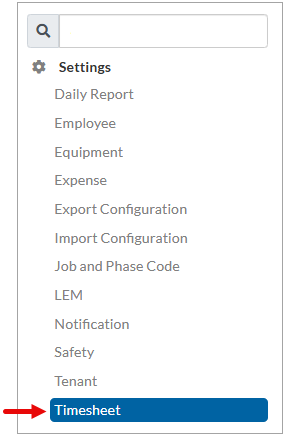
- In the main area of the window, expand the Approval Workflow section.
-
If you have not yet done so, select your
Approval
Mode:
Note: See About Approval Levels and Workflows for additional information.
-
1 Level Approval: Only one approval is required for a timesheet.
-
2 Level Approval - No Order: Two approvers are required for each timesheet entry, and they can approve in any order.
Note: To use two-level approvals, you must use per entry approvals on the Timesheet Summary (the setting Use Per Entry Timesheet Approval must be enabled). -
2 Level Approval - Strict: Two approvers are required for each timesheet entry, they can approve in any order, and only timesheets with two approvers will be exported to Spectrum.
Note: To use two-level approvals, you must you must use per entry approvals on the Timesheet Summary (the setting Use Per Entry Timesheet Approval must be enabled).
-
-
If you have not already done so, enable the
setting Only Export Approved
Timesheets.
This setting determines whether only approved timesheets or all timesheets are exported to Spectrum. We recommend enabling this setting to ensure your payroll aligns with job costs.
-
Enable the setting Use Per Entry Timesheet
Approval.
This setting determines whether users can approve individual employee time entries on the Timesheet Summary page.
Note: If you leave this setting off, the approval box on an entry shows as blank on the Timesheet Summary. The approver's name will be listed for the entries once the full timesheet is approved. -
To allow per entry expense
approval:
- In the main area of the page, expand the Timesheet Summary section.
-
Enable the setting Show
Job Expenses on Time Period Summary.
This setting determines whether users can view expense entries on the Timesheet Summary page.
Note: To allow per entry expense approval, you must enable this setting in combination with Use Per Entry Timesheet Approval.
-
To allow per entry equipment
approval:
- In the main area of the page, expand the Approval Workflow section.
-
Enable the setting Use
Equipment Approvals.
This setting determines whether equipment entries can be approved.
- In the main area of the page, expand the Timesheet Summary section.
-
Enable the setting Show
Equipment Entries on Timesheet Summary
This setting determines whether equipment entries show on the Timesheet Summary page.
Note: To allow per entry equipment approval, you must enable Use Equipment Approvals and Show Equipment Entries on Timesheet Summary in combination with Use Per Entry Timesheet Approval.
-
To use crew supervisor
approval:
- In the main area of the page, expand the Approval Workflow section.
-
Enable the setting Use Crew Supervisor.
This setting determines whether crews will have supervisors and allows you to filter entries on the Timesheet Summary by the Crew Supervisor field.
-
Confirm (or add) the appropriate user as a
supervisor for a crew.
This links the Traqspera user to the crew and does not require an employee in Traqspera.
Note: Crew supervisors can also view all crews they are responsible for from the Timesheet List page without the following settings enabled: View All Crews or View All Timesheets
- Select Save.
-
From the categories on the left side of the Settings
page, select Permissions, and then select
Timesheet.

-
In the main area of the window:
- Near the top of the page, select a Role from the dropdown list. For example, Project Manager.
- Scroll to and expand the Timesheet Summary section.
-
Enable the permission View Timesheet
Summary.
Users with this permission can only view the employees or projects they are responsible for on the Timesheet Summary page.
Note: The employee or project name prefills the relevant filter on the Timesheet Summary automatically, effectively locking the approver’s view, as long as the permission View All Timesheets On Summary is not enabled for the same role. -
Confirm that the checkbox for the
permission View All
Timesheets on Summary
is not selected. To enforce locked
approvals, this permission must be off.
Note: If you leave this permission enabled, your approvers will have an unrestricted view of the Timesheet Summary page (unlocked approvals). Approvers will be able to view all employee and crew timesheets from the Timesheet Summary; access entries for other approvers; and access specific overhead entries (vacation, sick, holiday, office wages) for designated employees.
-
Configure (or confirm) approver setup.
Approvers must be set up as one of the following: the employee's assigned supervisor in Traqspera, or a project manager or superintendent assigned to the job in Spectrum.
- Assigned supervisor in Traqspera: Assign supervisors to an employee on the Employee Profile page in Traqspera: Employee Profile > Additional Info tab > Supervisor field.
- Project Manager or Superintendent in Spectrum: The project manager and superintendent for a job are assigned on the Job Contacts screen in Spectrum: Job > Properties > Contacts. In Traqspera, you can view the project manager or superintendent assigned to a job on the Jobs page (from the Jobs > Job List, select a job).
- If you are using assigned supervisor approvals, all employee entries (job cost, overhead, equipment labor, service work order) will be covered for approval.
-
If you are using PM or superintendent approvals, any overhead time/jobs
(including holiday, sick, and vacation) or equipment repair entries are not
initially linked to a specific individual as these jobs are created in Traqspera. In this scenario, you
must do the following:
-
In Traqspera,
manually add a single PM to each job.
Note: If you use Time Off Requests, overhead time off entries are initially routed based on the settings under Time Off Setup.
-
In Spectrum, ensure
that installation settings use the employee code for the superintendent
or project managers as follows:
-
In Spectrum, go to System Administration > Installation > Job Cost.
-
On the Properties tab, select the checkbox for the following setting: Utilize employee code for job personnel?
-
-
In Traqspera,
manually add a single PM to each job.