
Configure timesheet fields for recording per diem / LOA and travel expenses.
You can add these same fields to timesheets and for clock in / clock out.
-
In Traqspera, select Settings & Permissions.
The Settings and Permissions page opens.
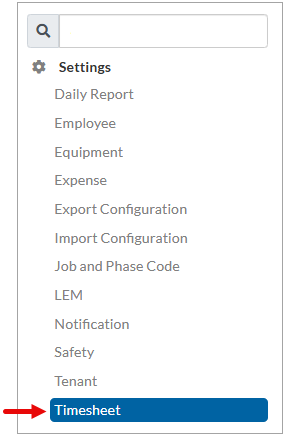
- From the list of settings categories on the left side of the page, select
Timesheet.Tip: You can also search for the setting name using the search field above the category list.
- In the main area of the window, scroll to and expand the Per Diem/LOA section.
-
Enable the setting Use
LOA.
Important: Requires the permission Can Use LOA under Settings & Permissions > Timesheet > Timesheet Fields. See step x for details.
-
In the LOA Field Name setting, enter a custom name for
the per diem / LOA field. The text you enter will display on timesheets and all
other areas of the system where the per diem / LOA field displays.
Note: If you leave this field blank, the per diem / LOA field name will display as blank across the system.
-
In LOA Field Type, select
how you want the per diem / LOA field to display on timesheets:
LOA Field Type Option Description Checkbox Shows a box employees select to indicate that per diem applies for that timesheet entry. This option eliminates the risk of employees entering the wrong per diem / LOA value.If select this option, you must configure per diem rates on the Manage Labor and Equipment Rates page under either: - Labor Rates > Global Default Rates or
- Job Rates > Job Default Values for Spectrum Export
Text Field Shows a blank text field that employees can use to enter a per diem dollar amount (any value may be entered). Dropdown - Dollar Amount Shows a dropdown with per diem / LOA options as dollar amounts. You must configure the options to display. For example: $25.00, $50.00, $75.00. To configure dropdown options, select the Configure Per Diem/LOA Options button.
Dropdown - Name Only Shows a dropdown with per diem / LOA options as a name or label. You must configure the options to display. For example, Breakfast, Lunch, Dinner. To configure dropdown options, select the Configure Per Diem/LOA Options button.
Note: If you select this option, the name and dollar amount display on the following pages: Timesheet Summary, Daily Reports, LEM Reports.Dropdown - Name & Dollar Amount Shows a dropdown with per diem / LOA options as a combination of a dollar amount and name. You must configure the options to display. For example, Breakfast $25.00, Lunch $50.00, Dinner $75.00. To configure dropdown options, select the Configure Per Diem/LOA Options button.
Note: Only the dollar values are shown on Timesheet CSV exports (Timesheet Export and Mass Timesheet CSV Export), regardless of the setting chosen for the LOA Field Type. -
If you selected a Dropdown option for the LOA
Field Type, select the Configure Per Diem/LOA
Options button.
This opens the Per Diem / LOA Dropdown Configuration window.
- The Mode field prefills with the dropdown option you selected in application settings. You can change the mode here if required.
-
If you selected:
-
Dropdown - Dollar Amount: Enter a specific dollar amount that employees can select as a per diem / LOA amount. For example, $25.00.
-
Dropdown - Name Only: Enter a specific dollar amount that employees can select as a per diem / LOA amount. For example, $25.00. Then enter a name to associate with that dollar amount. For example, Breakfast. Only the name will display for employees in the per diem / LOA field on timesheets.
- Dropdown - Name & Dollar Amount: Enter a specific dollar amount that employees can select as a per diem / LOA amount. For example, $25.00. Then enter a name to associate with that dollar amount. For example, Breakfast. The name and dollar amount will display for employees in the per diem / LOA field on timesheets. For example, Breakfast - $25.00.
-
- Select Add.
- Add more values as needed.
- When you are finished, select Close.