Use the Time Off page to request time off and to review leave
code balances and time off history.
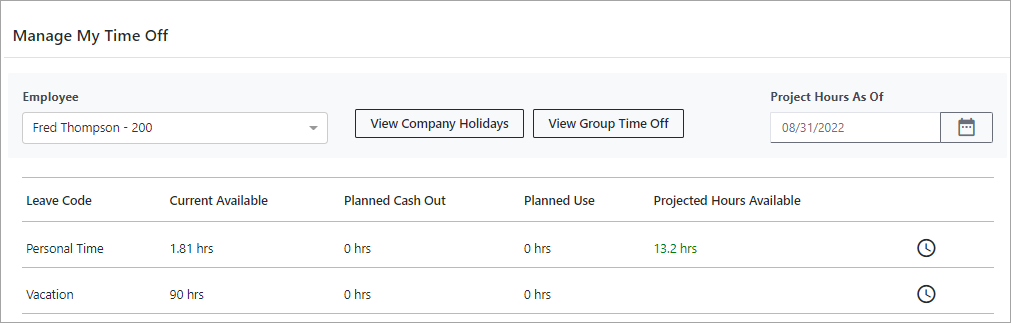
Request time off by selecting dates on the calender
and choosing a leave code for those dates. You can view a list of your company's
holidays (if configured) by selecting the View Company Holidays at the top of the page. To see a time off
schedule for other employees in your assigned group (requires permission), select the
View Group Time Off
button.-
Select .
The
Manage My Time Off page opens showing current leave code
balances for the logged in user as of today's date. These include hours
currently available, hours planned for use, and projected hours based on a
future date. For more details on projected balances, see
Review and Project Leave Code Balances.
-
To request time off (full days):
-
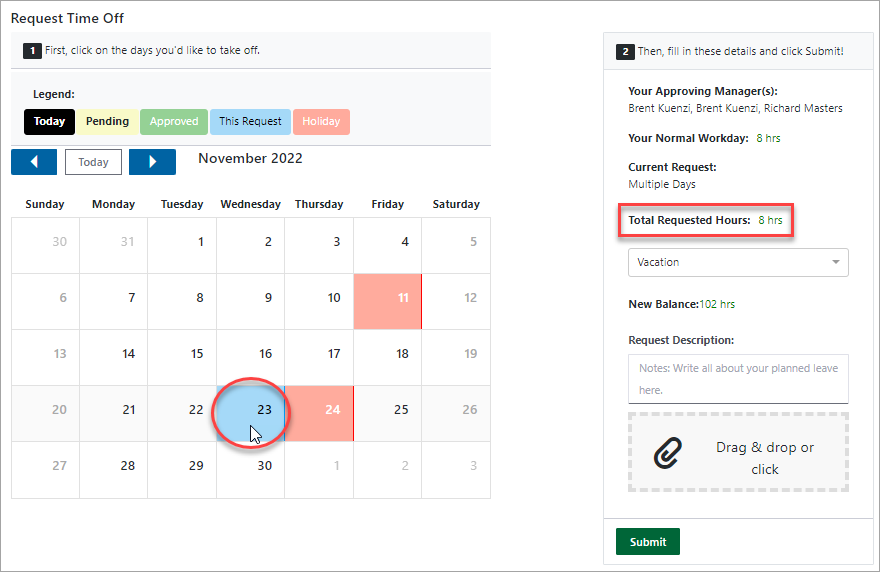
Select the days off from the calendar. Use
the right and left arrows at the top of the calendar to navigate to
different months. Total
Requested Hours updates based on the days that you
select.
-
In the leave code dropdown, select the
applicable leave code. For example, Vacation.
-
In the Request
Description field, enter a brief description for your
request to submit to your supervisor.
-
Select Submit to finalize
your request.
-
To request a partial day off:
-
Select a single day on the calendar.
-
In the Current Request
dropdown, select Partial
Day.
The Total Requested Hours
field is made available for an hours entry.
-
Enter the Total Requested
Hours.
Note: Some leave codes require whole hours entry
or allow increments of an hour for time off. If your Total Requested
Hours do not match the required increment, a message displays below
the leave code field to indicate the required increment for that
code.
-
In the leave code dropdown, select the
applicable leave code. For example, Vacation.
-
Select Submit to finalize
your request.
-
To download a calendar invite for requested time
off, in the Request
History area, select the Action button and then select
Calendar for that
request (applies only to future requests).
The Request History area shows all requests that have been
submitted. You can search for submitted requests by leave code.
-
To cancel a time off request, in the Request History area, select
the Action button and
then select Cancel for
that request.