
The 2025.3.0 release is effective November 16, 2025.
The 2025.3.0 Release of Jobpac is our third and final release for 2025. This year, we have delivered 55 new features to your core business system, including the launch of Jobpac’s new Mobile app with its first features for Time capture, and big time-saving features such as the Bank Reconciliation Direct Match to Outstanding Invoices feature. In addition, compliance work has kept us busy in 2025 with the new PTRS format and more features aimed at streamlining the PTA process as we move into the certification phase for PTA in November, to cap off a big year.
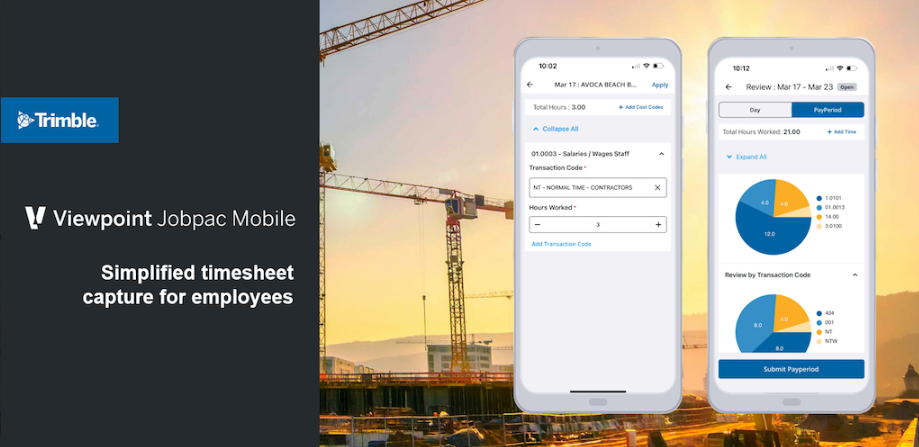
In this release, we're maintaining our focus on enhancing the Jobpac mobile experience and are excited to introduce the new Crew Time Entry feature for mobile. This next step in our mobile evolution makes it easier than ever for your teams to manage labour tracking directly from the field, and keeps that mobile development velocity moving forward. Our Mobile team is already working on the next Jobpac Mobile feature, Mobile Approvals, which will give you access to all Jobpac Advanced Approvals on a mobile device.
For those managing Advanced Approvals workflows, we’ve added some intuitive Invoice Approvals at Detail Level functionality. This enhancement further streamlines advanced approvals, giving you greater control and flexibility in your processing pipelines.
We are also excited to announce the availability of Trimble ID, the next-generation SSO authentication for Jobpac and all Trimble solutions. Trimble ID represents a leap in authentication stability and performance, aligning with Trimble’s Connected Construction Technology platform product strategy. Our first customers are already on board, and we aim to transition 30% of our customers to Trimble ID by the end of November. Please note that following the November Trimble ID rollout phase, we will honour the industry-standard December blackout period to ensure stability over the Christmas period. The remainder of the rollout will continue with full force in early 2026! Please note that we will communicate with you five weeks in advance of the Trimble ID activation date for your company, giving you ample time to prepare your users for the transition. Trimble ID Transition communication is comprehensive, including a webinar, documentation, FAQ’s, and Videos.
Lastly, check out our new AI Trimble Assistant feature, available to all users in Beta mode!
I encourage you to read more about the 2025.3.0 Release in detail below.
Kind Regards,
Andrew Tucker
Sr. Product Manager, Trimble Viewpoint APAC
Roadmap
- Jobpac Mobile Crew Time Entry
In line with 2025.3.0, we are pleased to release our second major feature for the Jobpac Mobile app: Crew Time entry. Building on our first mobile feature for Individual Time entry, Crew Time Entry allows you to set up ‘Crews’ in Jobpac and assign Crew Managers/Owners who are responsible for the time entry for their Crew. Crew Managers/Owners can then enter time for their Crews in Jobpac Mobile and sync to any of Jobpac's time entry methods. In addition, the Crew Manager can enter time for their ETS Workgroup if they are using Employee Weekly workgroups.
Features of Jobpac Mobile Crew Time entry include…
- A Crew Manager can own multiple Crews.
- Easily add temporary Crew members on any given day from a mobile device.
- Integration into any of Jobpac’s 3 Timesheet entry methods.
- Apply default Cost Centre, Transaction Code and Hours to all Crew members for a day in a few clicks.
- Review Crew time graphically for your whole crew before submitting to Jobpac.
- Enter time even if offline and sync automatically when back in range.
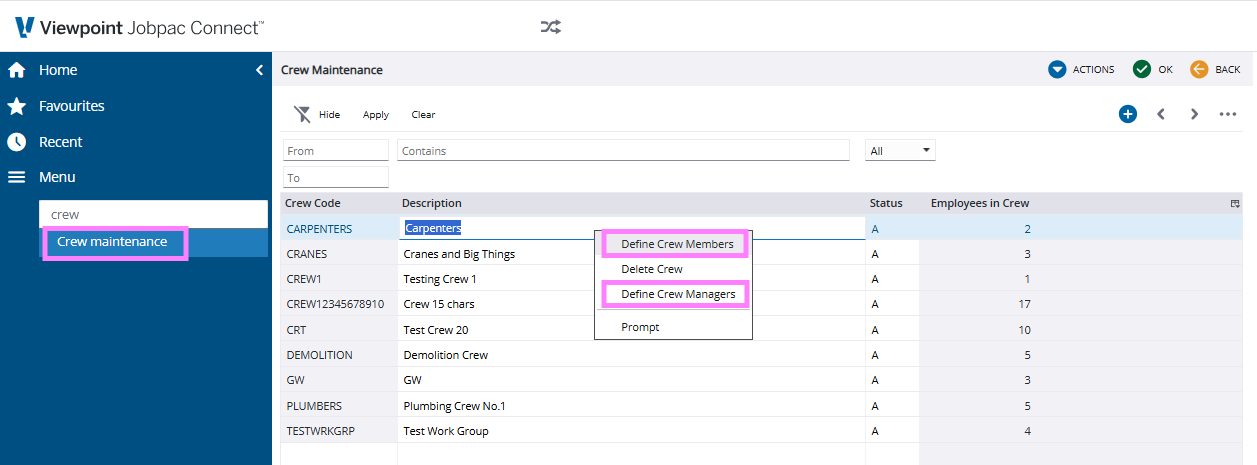
There is a new Crew Maintenance program in Jobpac that is only applicable to the Jobpac Mobile Crew Time Entry app, but if you need it, you can add the new maintenance program to a menu of your choice with the following program code.
Type: P Description : Crew Maintenance Command: CREWMAINTP
The Crew Maintenance screen is shown below. It has simple options to…
- Add a Crew Code with a description,
- A right-click option to Define Crew Members,
- A right-click option to Define Crew Managers, and
- A right-click option to Delete Crews.
- Trimble Assistant BETA - Jobpac’s new AI
help chatbot
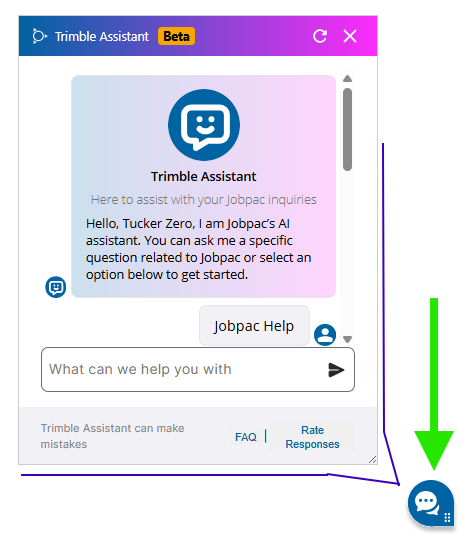
We are also very pleased to announce our first AI feature for Jobpac. Say hello to Jobpac’s new AI chatbot, Trimble Assistant. All users can access Trimble Assistant with one click on the Trimble Assistant Icon at the bottom right of their screen, as shown below.
Trimble Assistant will remain in Beta mode for a little while longer as we continue to train the assistant and learn from your feedback, but it's already pretty clever! Give Trimble Assistant a try, test it with any questions you may have, and provide feedback if you can; it will help us learn.
- Batch Invoice Approvals - New Selection
options.
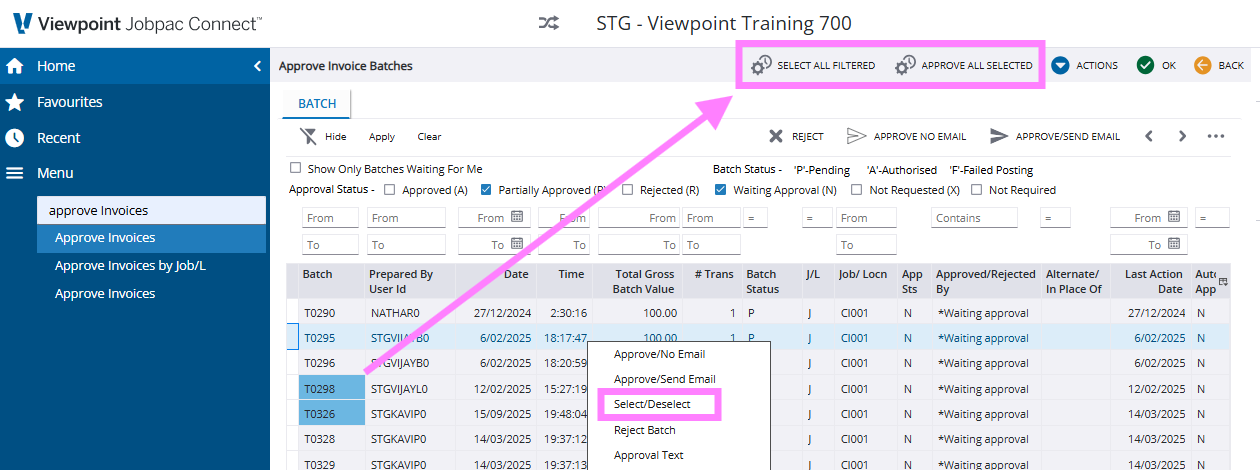
More control has been added for AP Invoice approvals when using the ‘Batch Approvals’ configuration. This is where AP Invoices are batched, and then the entire batch of invoices is sent for approval, as opposed to the setup where Invoices are sent for approval individually, known as ‘Individual Invoice Approvals’. When operating under the ‘Batch Approvals’ configuration, there is a System parameter that allows the ability to bulk approve filtered Invoices currently assigned to the user. The parameter is APPINV Pos13 (Note: If you are interested in activating this parameter, please test and consider this configuration before implementing it in Production). If this parameter is enabled, allowing your users to bulk approve their invoices, then with R2025.3.0, your users will be able to make individual selections and bulk Approve All Selected Invoices, as well as use the existing Approve All Filtered Invoices feature.
Note the new options highlighted in the screenshot below now include:
- Right-click options to Select / Deselect
- An Action Option to Deselect All
- An Action Option, and a One-Click Productivity Button to Select all filtered
- An Action Option, and a One-Click Productivity Button to Approve all selected.
- Individual Invoice Approvals
Streamlining
In 2025.3.0, we added further intuitiveness and streamlining to our Advanced Approvals module in the area of Individual Invoice Approvals. This feature will only be available to customers who are configured to use Individual Invoice Approvals. The feature is not available to customers using the “Batch Approvals” methodology. In essence, we aim to streamline the approval process for individual invoices with the following new workflow, resulting in significantly reduced clicks.
- Filter or select the list of Invoices that you wish to approve in your current session.
- Select to Approve this list at Detail Level
- See all Individual Invoice details on one page, including dissection information, and the attached Invoice automatically opened in the view pane.
- See the Invoice, PO and Delivery Docket attachments all on the same page.
- Approve, Reject, or Skip with One Click Productivity buttons
- Automatically move to the next Invoice in your selected List.
If you are already using Individual Invoice Approvals, you do not need to switch on anything to activate this new Detail Level Approval feature. It is ready to use with little training required. Please note that you can continue to use your current methodology in parallel, ensuring no disruption to your users. Please reach out to our support team if you are not already using the Individual Invoice Approvals functionality and would like to investigate this methodology.
Note, there is also a System parameter that allows the ability to bulk approve ALL Selected Invoices. The parameter is APPINV Pos13, and it unlocks some extra bulk approval options. Please take care to test and consider this bulk approval configuration before implementing in Production, as it can promote an approval behaviour that is not as careful.
To follow is a detailed description of the new streamlined Invoice Approval at Detail Level workflow.
Step 1: Navigate to Invoice Approvals and prepare your list for approval.
Apply filters OR use the new Select/Deselect/Select All options in combination to prepare your focused list of Invoices that you wish to approve at the Detail Level. The Screenshot below shows the Invoice Approval List screen with some Invoices selected, as indicated by the blue tags. In addition, some of the new Select options are highlighted in the screenshot.
Tip: You can control the default tab that is opened when you first enter this program using Position 16 of the APPINV System Parameter. Take care when adjusting system parameters, as changes will apply to all users.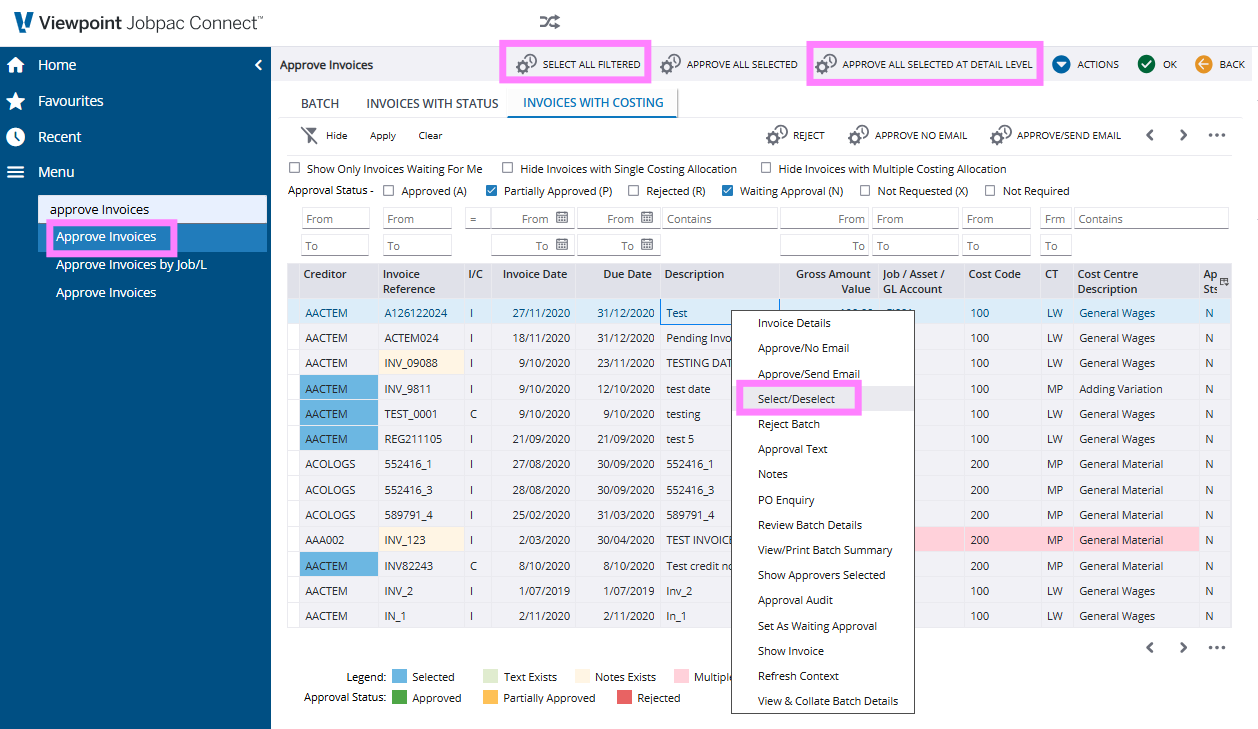
Step 2: Use the One-click productivity button to “Approve all Selected (or Filtered) at Detail Level”
If you have elected to apply filters to prepare your List of Invoices, and not made any selections, you will note that there is a One-click productivity button to Approve all Filtered at Detail Level.
If you have used the new Selection options to prepare your List of Invoices, you will note that there is a One-click productivity button to Approve all Selected at Detail Level.
In this example, we have made some selections, so we will click on the One-click productivity button to Approve all Selected at Detail Level. You will be taken to the Approve Invoices - Invoice Detail View page, where the first Invoice in the selected list will display for your approval. All Invoice details are shown on one page, including:
- Invoice Header and Dissection Information
- Related content for the Invoice, PO and Delivery Docket
- The attached Invoice will automatically open in the view pane, as shown below
Tip: Don't forget you can fold the menu away on the Left to give you a full-screen view of your invoice documents next to the Invoice you are approving, as shown in the screenshot below.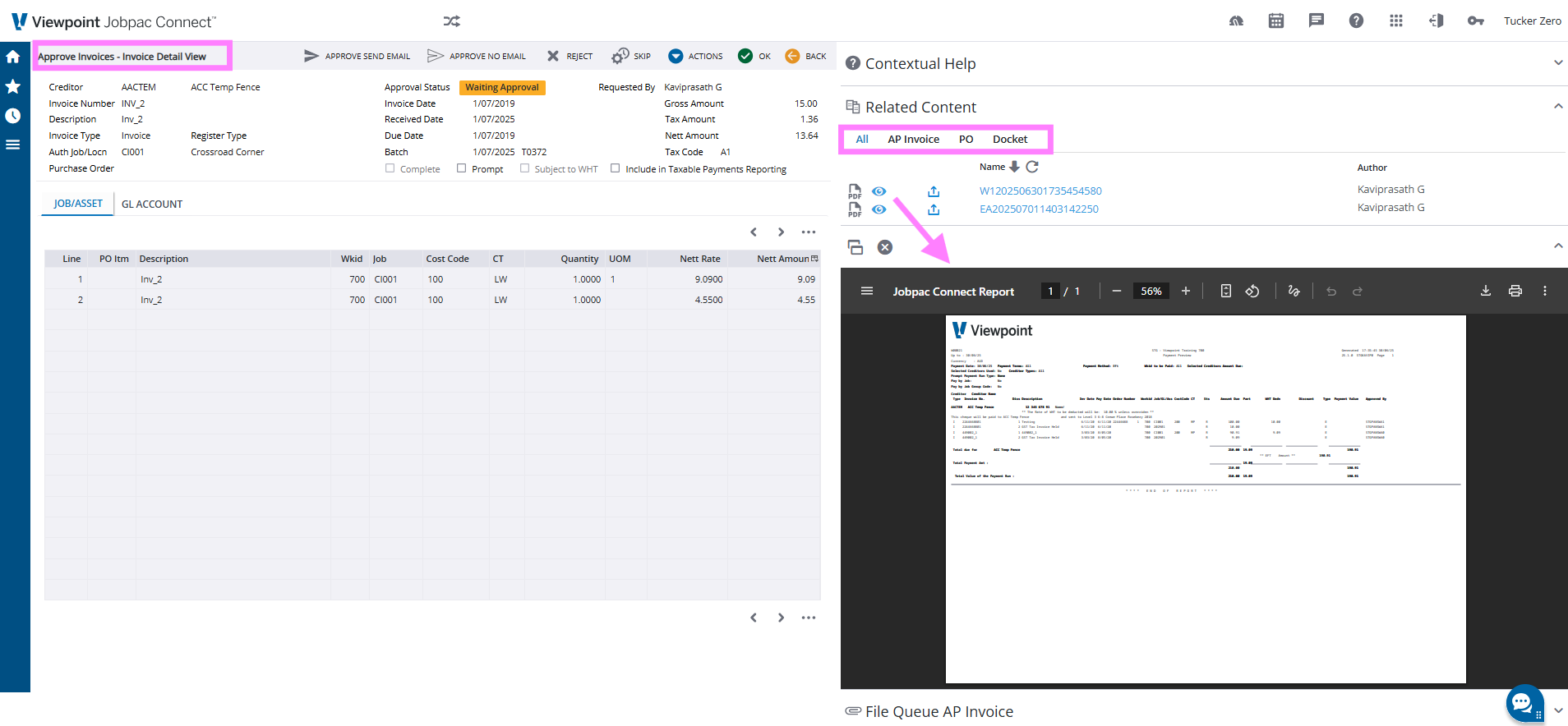
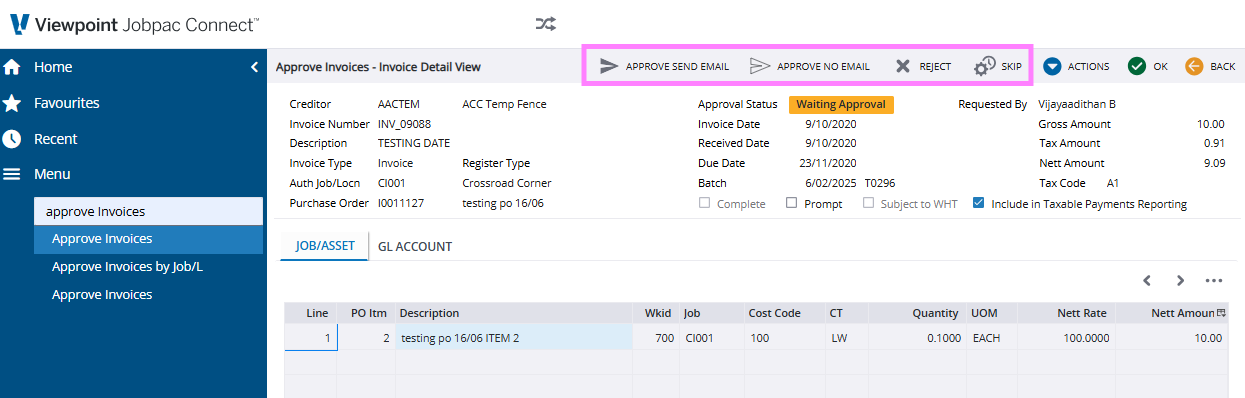
Step 3: Approve, Reject, or Skip with One-click productivity buttons
Once you have reviewed the invoice, take one of the One-click productivity buttons to either Approve the Invoice, Reject the Invoice, or Skip the Invoice if you want to come back to it later.
Taking any of these options will advance you to the next invoice in your previously curated list. Repeat the process until the end of your list when you will be returned to the Previous Invoice Approvals List screen.
- PTA - Trust Journal Work Centre - New
Received to Wrong Account Tab
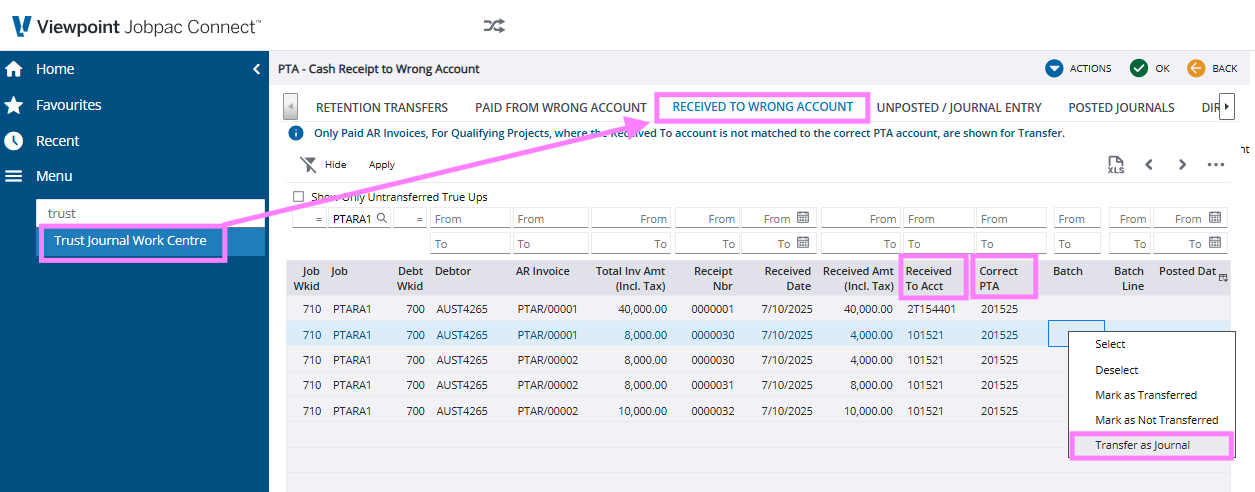
The Trust Journals Work Centre for PTA administration has been uplifted with a new tab that allows you to manage Cash Received to the Wrong Cash Account for a PTA project. In the event that cash has been received into the wrong Cash Account for your Project, the records will automatically show in the new tab on the Trust Journal Work Centre. Using a similar method to the other PTA corrections, you can easily create Trust Journals to move the cash to the correct PTA account. The trust Journal will balance the PTA Reconciliation Report, and in a future release, will also be available for ABA file generation for Bank Transfer.
To use the new feature, go to the new tab in the Trust Journal Work Centre as shown below.
- All Cash Receipts to the wrong PTA account for the project will be displayed.
- Use right-click to:
- Select / Deselect records for bulk actions
- Mark individual records as having already been transferred by another means
- Unmark records that may have been marked as transferred incorrectly
- Create a Trust Journal for the Cash transfer that will update PTA ledgers correctly
- Use Action Options to:
- Bulk Select / Deselect
- Bulk Transfer Selections
- Bulk Mark Selections as having already been transferred by another means
- Navigate to other tabs as an alternate to the existing screen tabbing
- And download the data on the screen for working in Excel.
- Ability to import BPay Biller Code and
Biller Ref in Pending Invoice Upload and OCR
It is now possible to import BPay Biller Code, BPay Payee Name, and BPay Biller References via the Pending Invoice Upload and OCR Imports. Note that currently, it is not possible to import new biller codes and Reference numbers. New BPay codes and Refs must be manually added to the Creditor Master file before they can be paid to.
Note also that the new fields are at the end of the import template, as shown below, meaning the previous version template is backwards compatible. To use the new fields, you will need to download the new version of the template as the first step in the Upload Workflow pop-up.

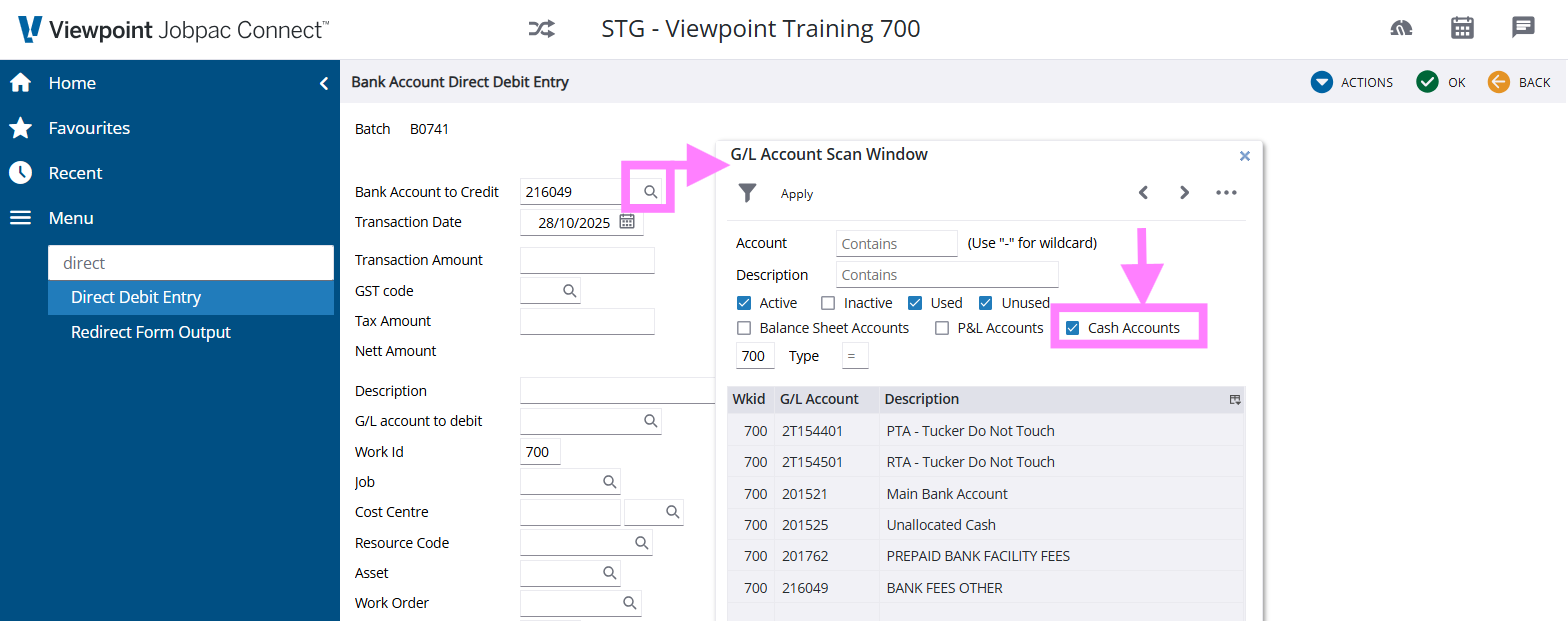
- Cash Account Filter added to the GL
account Scan
A new Cash Account filter has been added to the GL Scan, as shown below. When selected by itself, only GL Accounts that are set up as Cash Accounts will be listed in the scan.
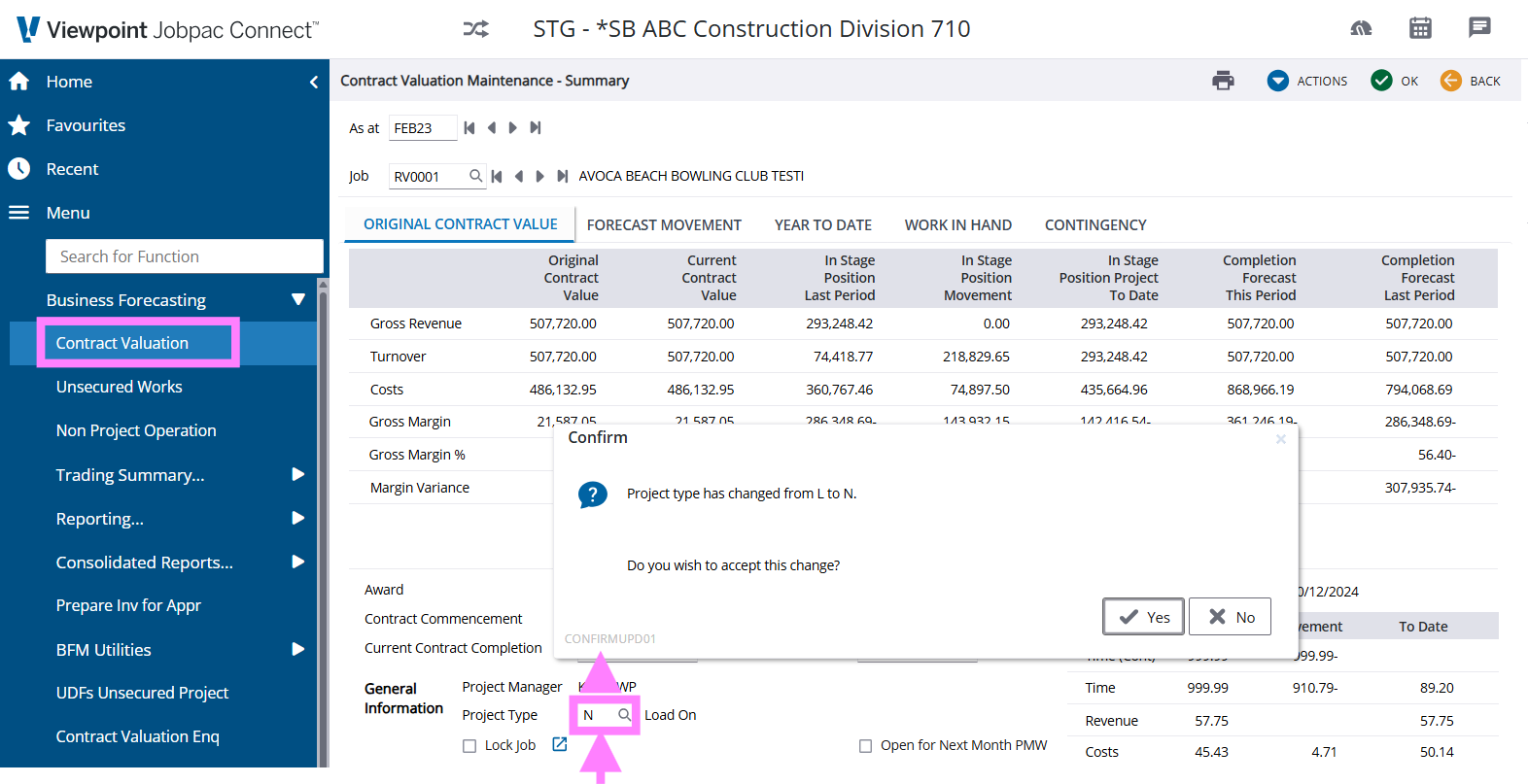
- Audit changes to the Project Type in CV
Maintenance.
A new confirmation pop-up will display if a user tries to change the Project Type in Contract Valuation Maintenance. The confirmation will confirm with the user to accept the change they are making. The acceptance of the change will be audited. This will give more visibility into how and why project values may have changed in curtain circumstances and add a pause for the user who is making the change.
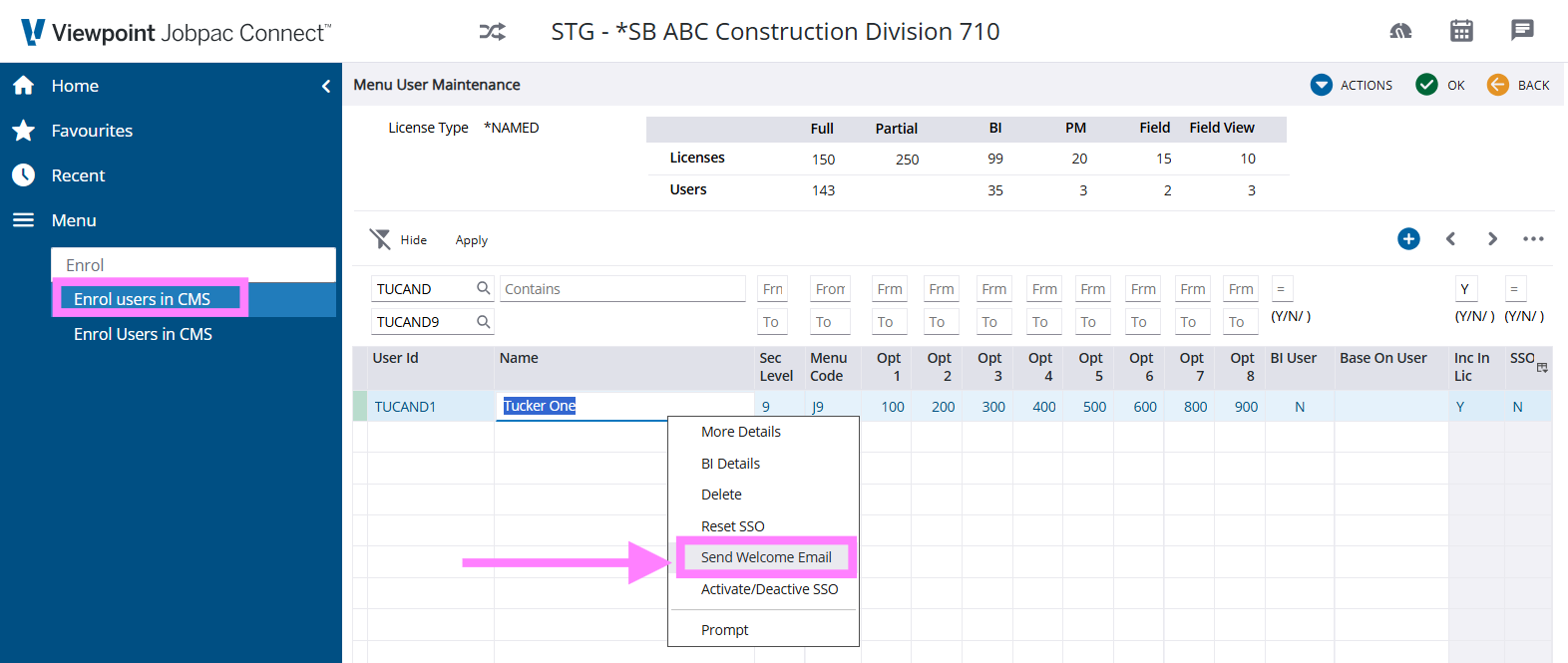
- Send New User Welcome Email from the
Enrol Users in the CMS maintenance program
You can send a newly activated user, or any user who needs to be re-invited, a Welcome Email from the Enrol Users in the CMS maintenance program. Simply right-click on the user and select Send Welcome Email, as shown below:
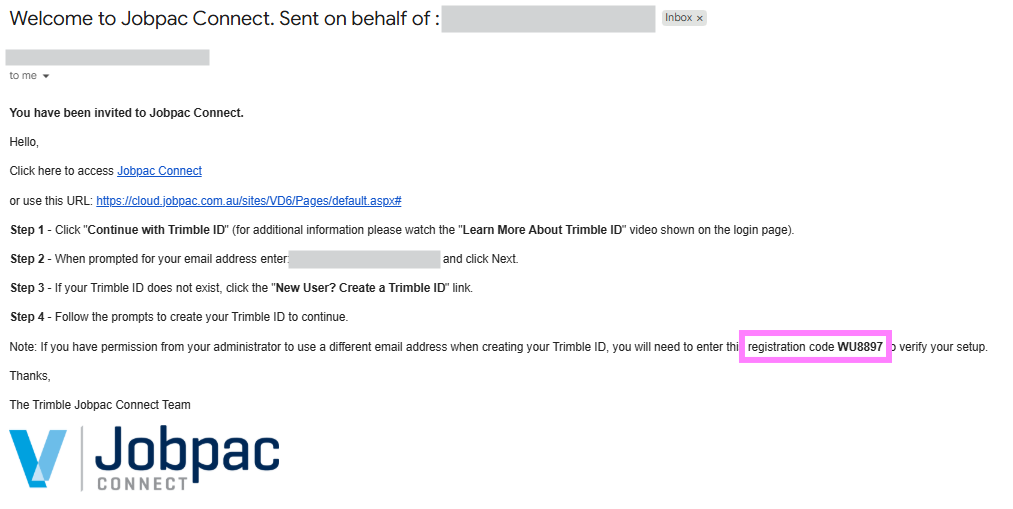
An invitation will be sent to the user immediately with the following features. The Welcome Email will be tailored to the type of user. Classic, VPID, or Trimble ID. Below, we will show the Welcome Email features for a Trimble ID user. (TID =Trimble ID)
- The user can simply click on the link in the email and go directly to Jobpac Connect
- The full URL is also provided if the user would like to copy and paste the link.
- Simple Sign-on steps are provided with the email to use for Trimble ID setup
- Note, there is also a Registration Code that the user can use for Trimble ID setup if prompted in the rare situation where their Trimble ID Email does not match their Jobpac Email. As shown below.
Suggestion Box & Other Enhancements
- Link to Creditor Details Enquiry from
Prepare Invoices for Approval Dissections Screen
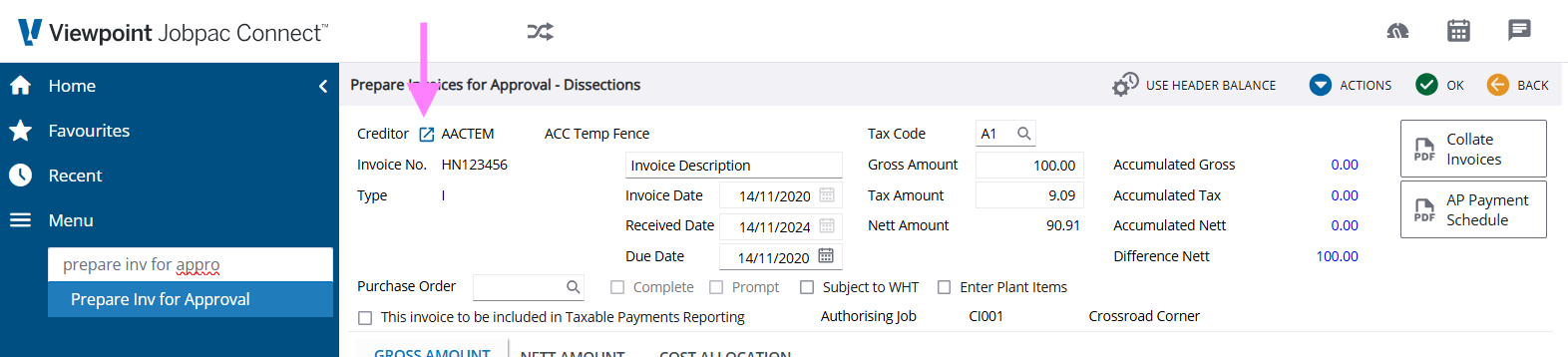
A Link has been added in the Prepare Invoices for Approval Dissections screen that will take you to the Creditor Enquiry for the Creditor in the invoice. Simply click on the launch icon as shown below to launch the Enquiry.
- Pass the Authorising Job to the PO
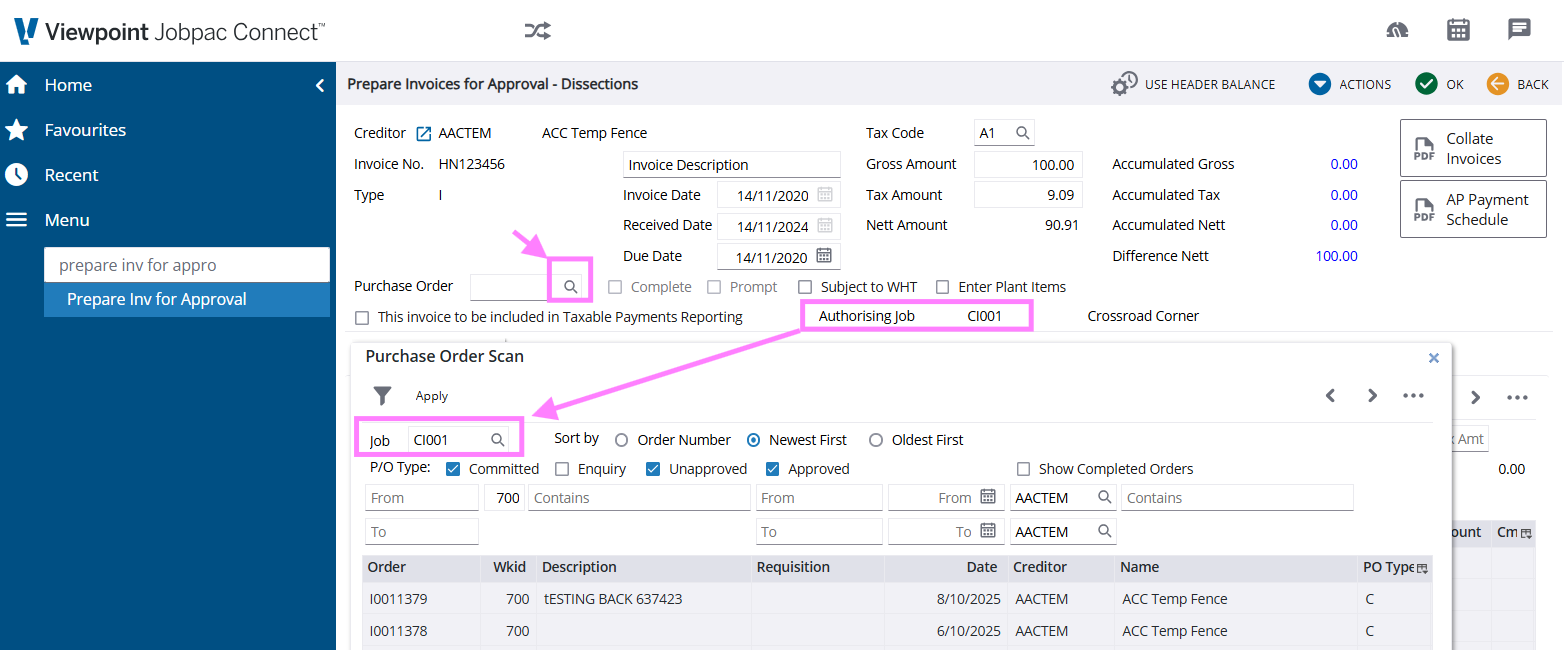
Scan in Prepare Invoices for Approval.
More intuitiveness, fewer clicks, and more time saving with this small feature in the Prepare Invoices for Approval program. On both the Invoice List screen and the Invoice Details screen, if you scan for a PO, then the Authorising Job on the currently selected Pending Invoice will be passed to the PO Scan filter. The Filter will immediately apply, making it quicker to find the order you are looking for.
- NZBN on the Creditor Details List
Report and AP Enquiry
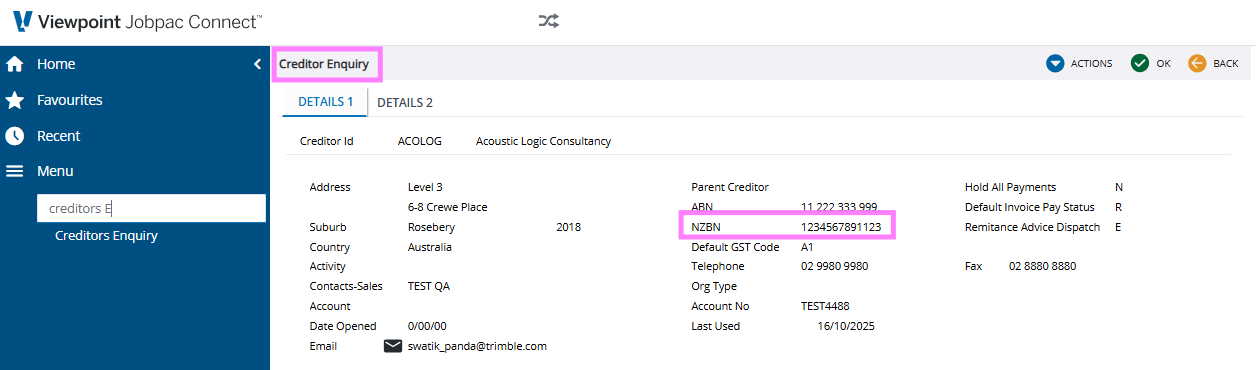
For our NZ customers and to follow the recent addition of the 13-character NZBN to Creditor Maintenance, we have included the new NZBN field on both the Creditor Details List Report and the Creditor Enquiry.
- BCTI/RCTI enhancements for
Subcontractor Employees
This enhancement delivers improvements to the payroll Labour-Only Process for Subcontractor Employees, including robust Labour-Only BCTI/RCTI reporting, enhanced visibility of timesheets passed through this module, and consolidated Form output with a new, improved Creditor Summary and Details BCTI/RCTI Form that consolidates individual employees to the one BCTI/RCTI form for each Creditor.
Changes to the Subcontractor Preprocessing Screen
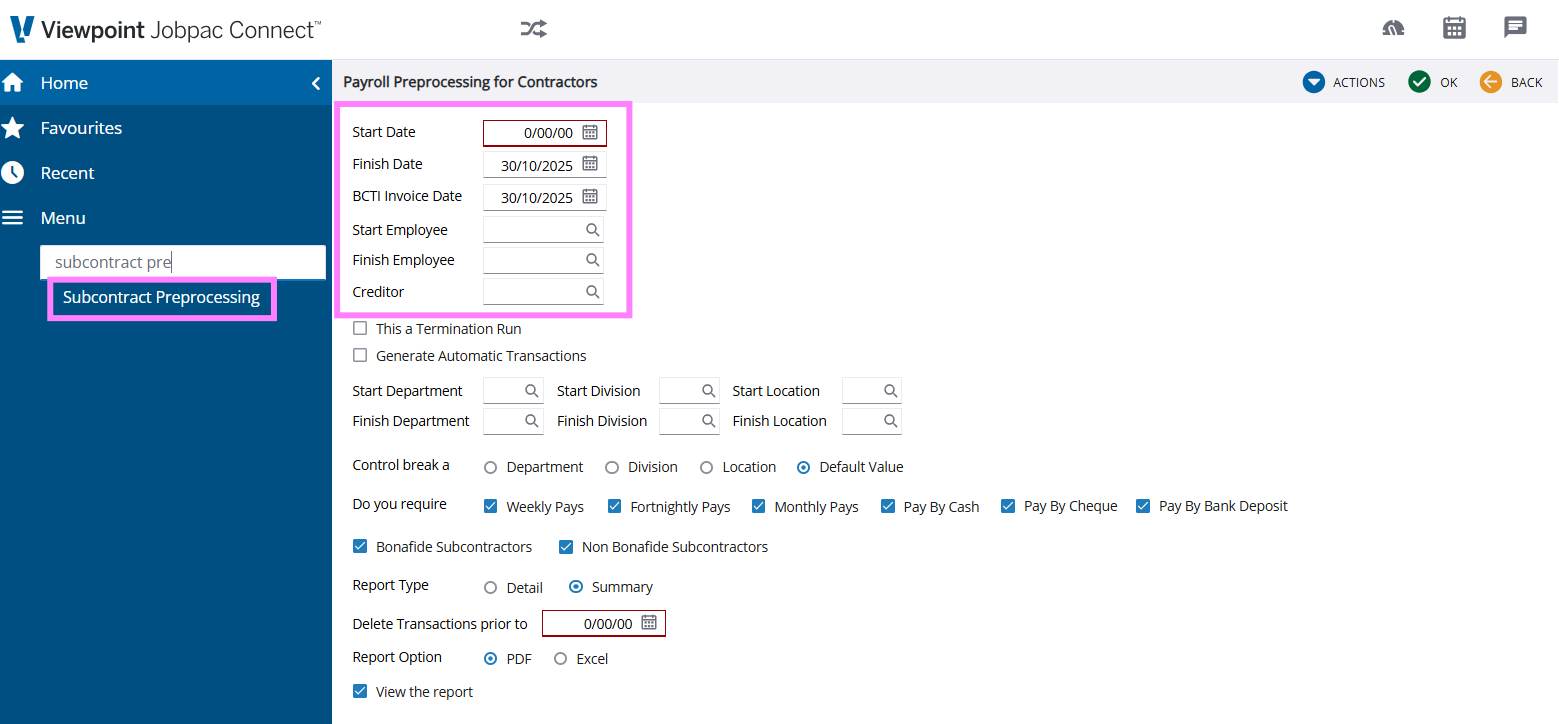
- The Subcontractor Preprocessing bounding screens have been reorganised slightly so that important bounding dates are at the top of the screen.
- And there is a new Creditor bounding option that allows you to run the Subcontractor Preprocessing for one creditor at a time, as shown below.
- A new Parameter has also been added to control the default setting for the “Generate Automatic Transactions” checkbox, specifically in the “Subcontract Preprocessing” screen, as shown below.
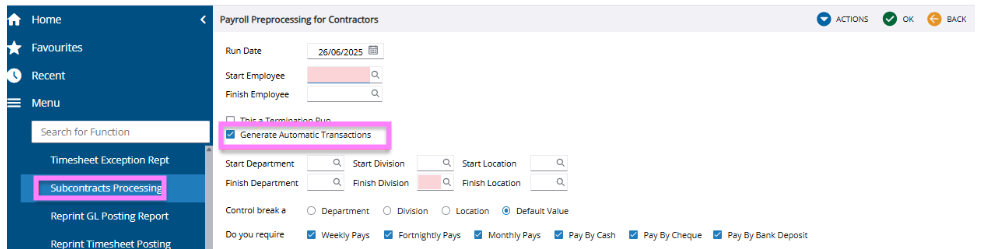
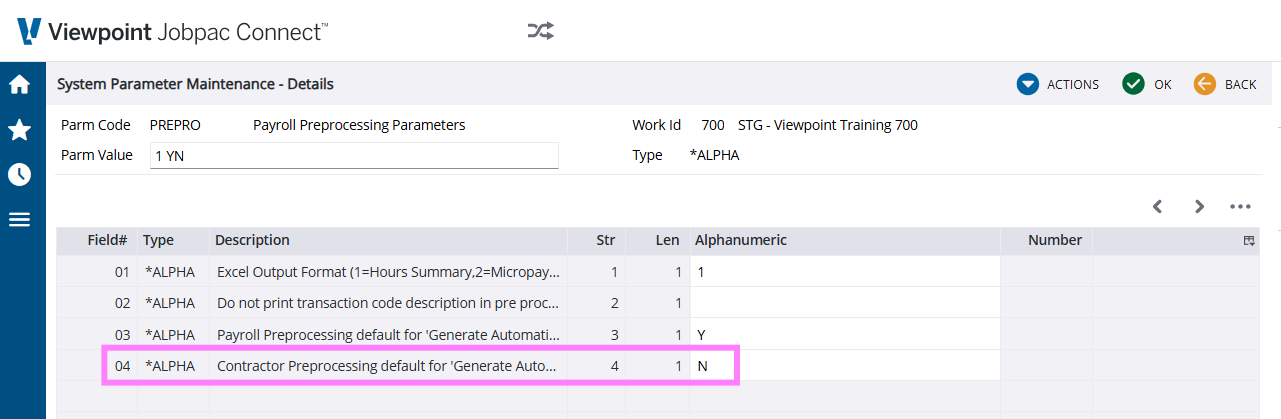
The System Parameter that controls this default screen setting is the PREPRO parameter, new Position 4, as shown below. Please take care when setting this parameter, as it will impact all users who are using the functionality and they will need to be aware of the default setting change.
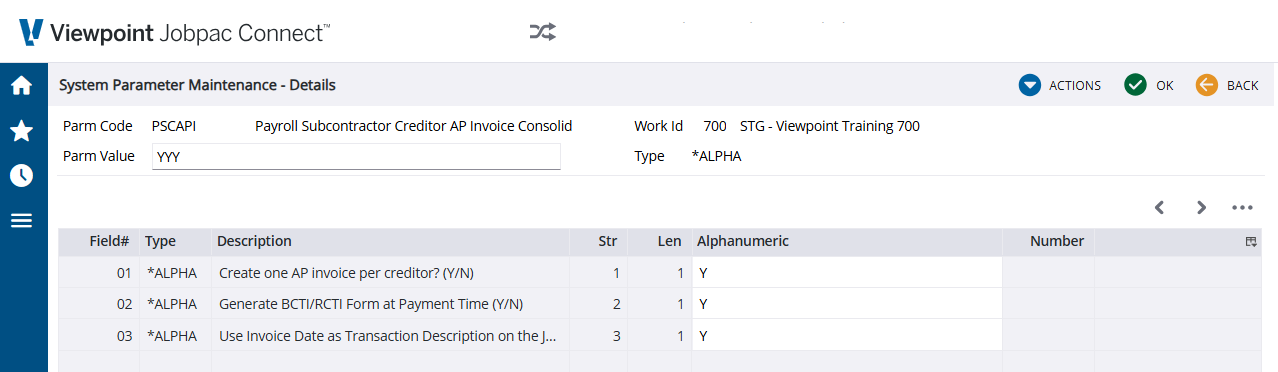
Generating ONE RCTI/BCTI per Creditor instead of ONE per Subcontractor Employee
- Create One Invoice
per Creditor instead of One per employee - You can activate
this feature by setting the new System Parameter setting PSCAPI -
Position 1 to “Y” as shown below. Note, if you do this, you will
also need to request the new JOM form from Jobpac support. The new
JOM form is essential for this enhancement as it provides a Creditor
summary and Subbie details on the new BCTI/RCTI form. The new form
should be installed at the same time as your planned activation.
NB. It is advised that you test this feature and the new form in your Test environment to ensure it suits your needs, before activating in the live environment.
- Generating the new BCTI/RCTI form at payment time - Set the 2nd Position of the new PSCAPI parameter to “Y” if you wish to generate the new BCTI/RCTI form at payment time as shown below.
- Transaction Description Settings - You can use the Invoice Date as the Transaction Description by setting the 3rd Position of the new PSCAPI parameter to “Y” as shown in the System Parameter settings screenshot below.
Fixes
Module – Accounts Payable
- [Fix] Approval columns are not correctly populated for some
invoices in the new AP Enquiry.
- Issue# 118088
- [Fix] Report total is missing when AP Payment Preview is run
with the ‘Collate Invoices’ option.
- Issue# 118486
- [Fix] Pending invoices are allowed to be costed to purchase
orders of different jobs. This can now be blocked by setting up a new system
parameter.
- System parameter INVAPX/position 6 = ‘Y’
- Check the job in the PO matches the authorising job
- Issue# 118488
- System parameter INVAPX/position 6 = ‘Y’
- [Fix] Pending invoices are allowed to be costed purchase orders of different jobs. A change has been made to check authorising job in the purchase order.
- [Fix] Pending Invoice Report includes invoices with other
status when run for ‘Approved’ status only.
- Issue# 118496
- [Fix] Pay Amount column is protected in Creditor Payment
Selection dissection screen.
- Issue# 118684
- [Fix] [WUI] Prompt Payment flag does not hold the value
entered in AP Change Payment Selection.
- Issue# 118687
- [Fix] PO matching to stock related PO items is not being
blocked when the system has been configured to allow only docket matching
(APTxx/position 7).
- Issue# 118727
- [Fix] Local Currency values show the foreign currency values
in the AP Enquiry for foreign currency invoices.
- Issue# 118729
- [Fix] Cannot select multiple invoices in Creditor Payment
Selection. To initiate the multiple selection, Control Key must be pressed
before selecting the first invoice and with it pressed, other invoices can be
selected by clicking on them.
- Issue# 118753
- [Fix] AP Invoice Upload (CREDBAL) allows invoices with
invalid GL accounts to be uploaded for asset costed dissections.
- Issue# 118803
- [Fix] PTRS Report produces an empty detail report when the
run number is finalised.
- Issue# 118964
- [Fix] AP Invoice Upload (CREDBAL) rejects dissections costed
to GL accounts with incorrect errors.
- Issue# 118996
- [Fix] User is returned to the landing page after selecting a
right click option in Creditor Maintenance and then selecting another tab.
- Issue# 119186
- [Fix] Extra blank lines are being included in the exception
report when processing the AP Invoice Due Date Upload.
- Internal Issue
- [Fix] AP invoice document extraction only includes a subset
of the invoices.
- Internal Issue
- [Fix] The purchase order number is not retained after a
prompt on the field and not order is selected from the scan when in Prepare
Invoices for Approval. This is for both the invoice list and the dissection
screens.
- Internal Issue
Module – Accounts Receivable
- [Fix] AR Invoice Upload (ARSUNDINV) allows invoices to be
uploaded against debtors who have had their credit stopped.
- Issue# 118821
- [Fix] Previously selected work id is not retained after a
work id scan without a selection in Debtor Statements.
- Internal Issue
Module – Advanced Approvals
- [Fix] Job Type in Maintain Approval Business Rules is being
ignored and causes the rules with Job Type to be ignored.
- Issue# 118818
- [Fix] Only 3 characters can be entered in the Name filter in
the Approval Workflow Users scan window.
- Issue# 118874
Module – Business Forecasting
- [Fix] Work Id totals are incorrect in the Consolidated
Contract Reconciliation Report.
- Issue# 118657
- [Fix] Misaligned vertical lines appear in the BFM Project
Summary Report.
- Internal Issue
Module – Fixed Assets
- [Fix] Depreciation Schedule and Forecast Depreciation
Reports are not working correctly for diminishing value rate types.
- Issue# 117899
- [Fix] Disposed assets are appearing in the Plant
Maintenance.
- Issue# 118487
- [Fix] Formatting issues in the Asset Location Report due to
double quotation (“) characters in the description field.
- Issue# 118896
- [Fix] Scan on the work id is not working in Asset User
Security.
- Internal Issue
- [Fix] Fixed Asset Plant Timesheet Posting crashes when
‘Include transactions up to’ date is not entered. It will now default to today’s
date.
- Internal Issue
Module – General Ledger
- [Enhancement] Allow Bank SFTP to not use PGP when using EFTSure.
- [Fix] Bank Reconciliation is not adding a header for GL
accounts when the balance is 0.
- Issue# 118405
- [Fix] BAS Report goes out of alignment due to special
characters in AP transaction numbers.
- Issue# 118689
- [Fix] ‘PAID FROM WRONG ACCOUNT’ tab in the Trust Journal
Work Centre shows as an unrendered screen when there is no data to display.
- Issue# 118841
- [Fix] Retrospective job journals are missing in the CWIP
Enquiry when the lines in the batch are costed to different costing work ids.
- Issue# 118935
- [Fix] Fixes in Bank Matching:
1. Cannot post direct debits after matching.
2. Crash when selecting multiple direct debits for matching.
- Internal Issue
Module – Job Costing
- [Fix] Formula calculations are not flowing down to the cost
centre level when the project is set with formula H.
- Issue# 118647
Module – Mobile
- [Fix] Non customer user profiles are appearing in the Jobpac
Mobile User Maintenance.
- Internal Issue
Module – Payroll
- [Fix] NZ Termination doubles the AL payout if the value is
negative.
- Issue# 118472
- [Fix] Tax is incorrectly calculated for employees who have
not provided their TFN.
- Issue# 118473
- [Fix] Payslip does not allow for more than 1 salary
sacrifice transaction in the summary total.
- Issue# 118495
- [Fix] Changes have been made to Timesheet Posting to be more
efficient and to complete the process faster.
- Issue# 118520
- [Fix] ‘Auto Occur’ and ‘Period Occur’ fields are being
defaulted when not populated in the Allowances/Deductions Upload.
- Issue# 118564
- [Fix] Leave Balance in Weeks in Employee Accruals is
calculated incorrectly for NZ payroll.
- Issue# 118872
- [Fix] Timesheet posting is not processed during Payroll
Processing if Timesheet Posting was not run prior to the Payroll Processing.
- Issue# 118903
- [Fix] After a scan on the user column and returning without
making a selection, other columns are being populated with defaults in ETS User
Maintenance.
- Internal Issue
Module – Progress Claims
- [Fix] Current Claimed values are showing as 0 in the HC
Claim Progress Claim Report in the Excel option
- Issue# 118751
Module – Purchase Orders
- [Fix] Total Incurred is doubling up when the Action option
‘Flag All as Fully Received’ is taken in Delivery Docket Entry.
- Issue# 118633
- [Fix] Approval on the final unapproved item does not commit
the purchase order.
- Issue# 118686
Module – Service Orders
- [Fix] Remove locks in the Service Order Billing
Interface.
- Internal Issue
Module – Stock
- [Fix] xxx
- Issue#
Module – Subcontracts
- [Fix] Subcontractor Retention Held in Trust Statement JOM
form does not start a new page on change of jobs.
- Issue# 118375
- [Fix] Bank Name, BSB, and Account Number are blank in the
PTA Reports when run by the 'Project Trust Account or Retention Held in Trust
Account'.
- Issue# 118474
- [Fix] PTA Reports are including unauthorised (draft claim)
lines with 0 value.
- Issue# 118627
- [Fix] Option ‘Collate All Documents’ is not working in
Subcontract Payment Approvals.
- Issue# 118805
Module – System Administration
- [Enhancement] Hide and block accelerator commands from users who do not have the authority.
- [Fix] Pending invoices widget values are changing when going
into menu options and returning to the home page.
- Issue# 117823
- [Fix] User Security Audit Report is empty when run for just
Active or Inactive options only.
- Internal Issue
- [Fix] Failure to log into Jobpac via Trimble ID.
- Internal Issue
Module – Variations
- [Fix] VO Analysis Report is empty when the user does not
have access to all jobs in the work id.
- Issue# 118817
- [Fix] ‘%of SC Value’ field in the Variation Register shows
an incorrect value of 999.99.
- Issue# 118830
- [Fix] Able to transfer internal variations with unallocated
values when the system is configured not to allow it (system parameter
VRUBTR/position 1 = ‘N’).
- Issue# 118901
Module – Web Services/Interfaces
- [Fix] CreateANewEmployee API does not allow the same
employee (code) to be created in other work ids when the system has been
configured to allow it (system parameter EMPMNT/posit 1 = ‘Y’).
- Issue# 118533
- [Fix] OCR invoices authorised to locations are getting stuck
in the eInvoice Edit screen and not going through to pending state.
- Issue# 118690
- [Fix] Cost Updates Allowed flag (AllowCostUpdates) is not
being updated via a call to UpdateAJob API.
- Issue# 118702
- [Fix] Cannot enter negative values for custom built
queries.
- Issue# 118793
- [Fix] PurchaseOrderListing returns data when an order number
greater than the maximum length (8) is passed as the Order parameter.
- Issue# 119103
- [Fix] APIs are failing for applications that have had
previously too many failures.
- Internal Issue
- [Fix] Rework on the Fixed Assets Plant Timesheet APIs.
- Internal Issue
- [Fix] PEPPOL invoices costed to jobs that are not active are
being blocked and preventing other invoices from getting through to Jobpac.
- Internal Issue
- [Fix] API to Ozedi for the PEPPOL interface to return the
correct records per page is failing.
- Internal Issue
Module – WUI/JOM/BI/Reports
- [Fix] [WUI] Unrendered screen after prompting on the Work Id
field when running the FInance Lease Acquisitions Report. The prompt button for
the work id is also missing.
- Internal Issue