
Settings are available from the project menu on the home page.
Data center region
The Data center region selector allows you to choose the ProjectSight environment where your project is located. Your region is generally based on your geographic location.
The data center region defaults to the country you selected for your Trimble ID account. However, you may have projects in a region other than the country you selected for your Trimble ID account. From the My projects page, access and choose a different data center region by selecting  > Settings > Region.

For more information on data center regions, see Select a data center region and Offline data center messages.
Usage and sync
The usage and sync settings are specific to each project. Project size reflects the size of the downloaded project, drawings and punch items. If the project is being downloaded / synced, this number will update accordingly.
For usage and sync information related to record types, see Record type usage and sync.
To remove a project from your device, select Remove Project. The project is still available for download on the My Projects page.
Photo resolution
Set the resolution for photos that are taken and used in the app. Select High for better image quality or Low for smaller file sizes.
Sync log
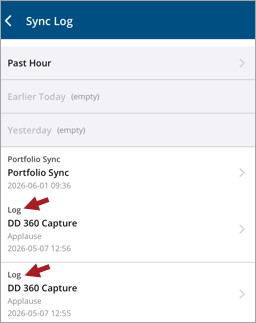
The sync log makes diagnosing and troubleshooting issues easy. Logs are grouped in chronological buckets: Past Hour, Earlier Today, and Yesterday. Syncs include timestamps and historical daily folders extend back 14 days.

- Sync Log for Past Hour - Most recent syncs
- Sync Log for Today - All syncs for the day
- Sync Log for Yesterday - Previous day's complete sync history. The empty time period is greyed out.
- Fetch Files - File retrieval operations
- Project Sync - Full project synchronization
- Project Download - Initial project download
- Portfolio Sync - Portfolio-level sync operation
To keep your device running efficiently, a background data routine automatically purges log files older than 20 days.
Select a sync log to view sync details. Then to share sync data details from the Log Information page, select Share  .
.
For more information on sharing sync logs, see Sync log sharing and View or share a sync log.