
Find information about daily reports.
You can use daily reports to track the equipment, daily activity of the crews, and weather conditions on the job site.
Note: If you don't have the feature permission
for future daily reports, you can only create daily reports for today's date,
based on the timezone in your profile, or earlier.
For example, in the daily report:
- You note that heavy rain on the job site caused delays for the scheduled concrete pours in Zones 1A to 1D.
- You log 40 hours of work for the day shift crew.
Open the Daily Reports module
- In the project menu, select .
Search for a daily report
- If the Search panel is closed, select
 (Search) on the navigation
toolbar.
(Search) on the navigation
toolbar. - Set the filters.
- The search terms are applied to text fields, including lookup lists, company and contact fields, and custom fields, in the daily reports that you have access to.
- To find the daily report for a specific date, select the date in the calendar.
- To find daily reports with labor, weather, and comment cards that were added by a specific contact or company, use the Contributing Contacts or Contributing Companies option.
- The Location filter displays the locations that are used in the labor and equipment cards.
Navigate to another daily report from the current report
- If the Information panel isn't open, select the information icon on the navigation toolbar.
- Select a date in the calendar, which indicates the dates
that have a daily report.
If you select a date without a daily report, a new report is created.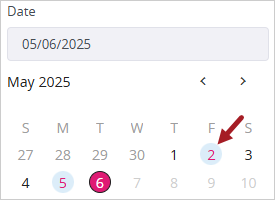
Note: If you opened the first report from the Daily
Reports module, you can select Previous item icon  (Previous) and
  (Next) to navigate between existing reports. These buttons aren't
available if you opened today's report from the Daily Reports
tile.
(Next) to navigate between existing reports. These buttons aren't
available if you opened today's report from the Daily Reports
tile.
(Previous) and (Next) to navigate between existing reports. These buttons aren't
available if you opened today's report from the Daily Reports
tile.