
The following instructions walk you through an overview of the export, setting up default export options, configuring an estimate for export, and creating the file that you may then import to your Spectrum By Viewpoint accounting package.
Introduction
The following instructions walk you through an overview of the export, setting up default export options, configuring an estimate for export, and creating the file that you may then import to your Spectrum By Viewpoint accounting package.
Overview of the export
The process of sending B2W Estimate information to your accounting package consists of creating an "export file" which contains information about your estimate's costs and prices. This file is saved in a format that will be imported and interpreted by your accounting system.
Before you can successfully create this export file, you'll need to do some coding within certain fields at the item and/or cost component levels in your estimate. If you're thinking ahead (and if your codes are consistent) you can even do some "pre-emptive coding" within the Item Databases and Resources areas.
However, before we go into the details about cost codes, let's review some basics:
-
Default settings that tell B2W Estimate how to speak to your accounting package are stored in the Options dialog. This topic is discussed in the next section.
-
The export file that B2W Estimate generates contains information about the items in a specific estimate.
-
Both pay items and indirect items are exported.
Note: Throughout this help topic, when "item" is used to reference a portion of B2W Estimate, it represents either a "pay item" or "indirect item". Otherwise, "pay item" or "indirect item" will be specified. -
Suppressed items are always ignored when exporting to accounting.
Configuring your default export options
Before you can successfully export to Spectrum, you must first configure some basic export settings in the Options dialog. This is part of the initial setup; once these settings are properly entered, you should not have to perform these steps again.
How? (Configuring Options)
-
Launch B2W Estimate, and log in.
-
Click Options in the Administration section on the Home Page or on the ribbon bar in an open estimate.
-
In the Options dialog, click the Imports/Exports folder, then click the Export Settings page.
-
In the Select Export Format box, select Spectrum By Viewpoint.
-
Enter your Spectrum Cost Types. Any description that appears in bold is a required field for the export and must be assigned a value. There is a one-character limit imposed by Spectrum for Cost Types.
Figure 1. See an example 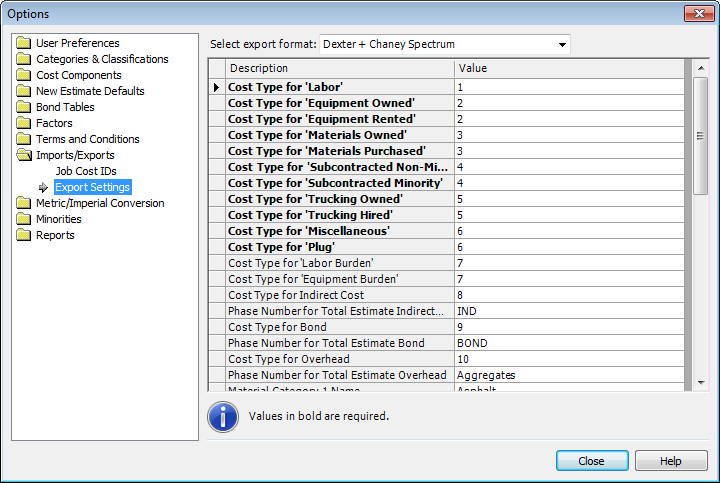
-
Configure the following settings:
Figure 2. Job-Level Worker's Compensation Code This field can store a default job-level worker's compensation code. The default code that you enter here applies to all of your estimate's items and labor components, except for items or labor components that have their own unique worker's compensation code. Entering a worker's comp code at the item or labor component level is described in a later section.
Figure 3. Use Work Type Name as Description Choose No to export the description associated with each pay item as the Spectrum Billing Description. Choose Yes to export the B2W Estimate work type associated with each pay item (or parent pay item) as the Spectrum Billing Description.
Figure 4. Use Job Cost ID Description for Phase Records Choose No to export the description associated with each item or task as the Spectrum Phase Description. Choose Yes to export the B2W Estimate Task JC ID description as the Phase Description.
Note: If you select Yes, and no Task JC ID description has been specified, the Description field for the Phase Record will be blank and a warning will be issued.Figure 5. Use Item Number as Billing Description This setting determines from where indirect items and child components get their Billing Item descriptions. Choose No to export a blank description for the Billing Item. Choose Yes to export the Billing Item description according to the following:
- For indirect items, as a blank value if its Job Cost ID field is blank.
- As the indirect item's or child component's non-combination Job Cost ID field value.
- As the first part of the indirect item's or child component's combination Job Cost ID field value.
Figure 6. Include Billing Item in Phase Code Choose No to export just the phase code number. Choose Yes if you wish to append phase code numbers with a billing code (Prefix or Suffix options available).
Figure 7. Export Revenue Records for Zero Price Pay Items / Mark Taxable Configure the toggle for zero-price items and whether revenue records are flagged as taxable.
Figure 8. Export Trucking Hours Choose Yes to export Trucking hours to the Hours field (field #8) of the Phase Record.
Figure 9. Hyphens and Zero Padding Settings for Remove Hyphens From Item ID, Set Billing Item Length, and Pad Billing Item with leading zeros allow you to match the formatting requirements of your Spectrum environment.
Figure 10. Tag Name for Cost Center / Quantity Record Configure the Tag Name for Cost Center and Export Quantity Record settings as required by your Spectrum import profile.
Figure 11. Phase Code Search In the Phase Code Search field, choose either Top Down or Bottom Up. A top down search will NOT search for child phase codes when a valid phase code is found at a higher level.
-
If appropriate, enter optional Cost Types for Burdens and Fuel Costs. Optional types are those not in bold in the Spectrum options table.
How? (Labor Burdens)
Table 1. Labor burdens configuration table Export configuration
Cost Type for 'Labor'
Cost Type for Labor Burden
Labor Burden Names 1 to 5
Labor base and burdens combined
Enter a value
Leave blank
Leave blank
Labor base with summarized burden
Enter a value
Enter a value
Leave blank
Labor base with split burdens (up to 10 types)
Enter a value
Enter a value
Enter values for names and types
Configuring an estimate for export to Spectrum
-
Open the estimate that you wish to export to Spectrum.
-
On the Estimate Information tab, verify Project Name, Location, City, State, and Projected Value. Verify Job number (Project Code).
-
On the Estimate Detail tab, code your pay items and cost components:
Figure 12. Coding at the pay item level Job Cost ID: Used as the Billing Item number. Combination IDs (e.g., ABCD~1234) can split Billing Number and Phase Number. If blank, Item Number is used.
Task JC ID: Tells B2W Estimate that all direct costs within the item account to this Phase Number.
Figure 13. Exporting at the component level Allows for multiple Phase Numbers within a single B2W Estimate pay item. Ensure Task JC ID is blank, then enter Job Cost ID values at the task, crew, or component level.
Figure 14. Worker's Comp code Assigned at Job, Item, or Labor levels. Prefix with a carat ("^") to differentiate from phase numbers (e.g., ABCD^1234).
Figure 15. Subcontracted items and tasks Exports Selected Subcontractor's Job Cost ID (Vendor Code) and name.
Examples of common coding scenarios
The following examples assume that your Phase Code Search export setting is set to "Bottom up."
Example 1: Item level coding - Costs roll up under a single Phase Code assigned to the item's Task JC ID.
Example 2: Component level coding - Costs roll up under multiple Phase Codes assigned to specific tasks within a pay item.
Example 3: Cost Type overrides - Use combination IDs (e.g., 75^86) to assign a specific Phase Code and override the default Cost Type.
Example 4: Revenue without costs - Exporting revenue items that do not contain cost structure.
Example 5: Item-level distributed costs - Using combination IDs (e.g., 2222~3333) to split Billing and Phase for distributed Indirects/Bond/Overhead.
Creating the export file
-
Open the estimate that you wish to export to Spectrum.
-
Click the Tools menu, point to Import/Export, and then select Export Estimate Detail.
-
The Export Estimate Detail wizard appears. Click Next.
-
On the Select Export Format page, verify that Spectrum is the selected export format, and then click Next.
-
On the Enter File Name page, click Browse, navigate to the folder, and select a filename with a ".txt" extension.
-
Click Save, then click Next, and then click Finish.
-
Review warnings, click Close, and import the text file into Spectrum.